Skip to content

Activating a travel eSIM takes a few minutes: you scan a QR code, the plan downloads to your phone, and you switch it on when you arrive. This guide covers iPhone, Samsung and Google Pixel, manual activation, dual-SIM settings and what to do if something doesn’t work.
Before you start
- Your phone supports eSIM. Dial *#06#: if you see an EID number, it has an eSIM chip. See compatible devices.
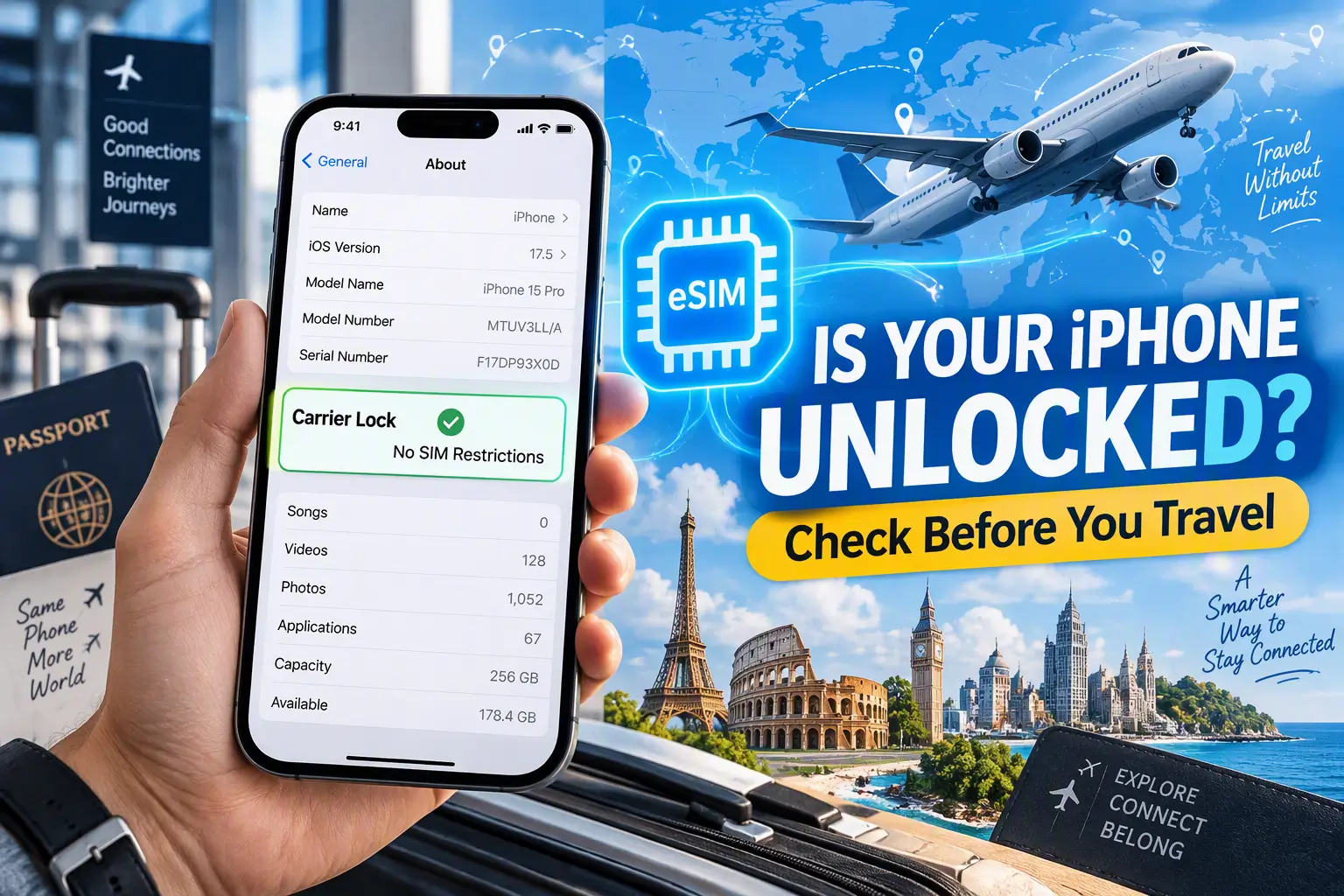
- Your phone is carrier-unlocked. A phone locked to your home carrier won’t accept another eSIM. On iPhone, here’s how to check your unlock status.
- You’re on Wi-Fi. The eSIM downloads over the internet, so install it before you leave home.
- You have your QR code. It’s in your order email from eSIM Move. Scan it from another screen or a printout, not from the phone you’re installing on.
Important: don’t delete the eSIM after installing it. Most eSIMs can only be installed once.
How to activate an eSIM on iPhone
- Open Settings → Mobile Service (or Cellular) and tap Add eSIM.
- Choose Use QR Code and scan the code from your email.
- When asked, give the new line a label such as “Travel”.
- For Default Line, keep your home number (Primary) for calls and iMessage.
- For Mobile Data, choose the Travel line. Turn Allow Mobile Data Switching off so your home line doesn’t use roaming data.
When you arrive: Settings → Mobile Service → Travel → turn on the line and switch Data Roaming on for that line.
How to activate an eSIM on Samsung Galaxy
- Open Settings → Connections → SIM manager.
- Tap Add eSIM, then Scan QR code, and scan the code from your email.
- Confirm to add the plan, and give it a name such as “Travel”.
- In SIM manager, set Mobile data to the Travel eSIM and keep calls and messages on your home SIM.
When you arrive: turn the Travel eSIM on in SIM manager, then go to Connections → Mobile networks and enable Data roaming.
How to activate an eSIM on Google Pixel
- Open Settings → Network & internet → SIMs.
- Tap Add SIM (or +), choose to download an eSIM, and scan the QR code.
- Follow the prompts to finish, then name the new SIM “Travel”.
- Under SIMs, set Mobile data to the Travel eSIM.
When you arrive: open the Travel SIM in Settings → Network & internet → SIMs, make sure it’s on, and enable Roaming.
Other Android phones use similar menus. We have step-by-step help for Oppo, Motorola and LG.
Activating without the QR code (manual entry)
If you can’t scan the QR code, choose Enter details manually (iPhone) or Enter activation code (Android) when adding the eSIM. Type in the SM-DP+ address and activation code exactly as shown in your order email.
Using two lines: your home SIM and the travel eSIM
- Data: set the travel eSIM as your mobile data line.
- Calls and texts: keep your home SIM on if you want to receive calls and SMS (check your carrier’s roaming rates for those), or turn it off completely to avoid any charges.
- WhatsApp and iMessage keep working with your usual number while the eSIM provides the data.
- Turn off Data Roaming on your home line so it never uses roaming data by mistake.
Troubleshooting
The eSIM is installed but there’s no internet
- Check the travel eSIM line is turned on and selected for mobile data.
- Make sure Data Roaming is on for the travel eSIM.
- Turn Airplane mode on for 10 seconds, then off again, or restart your phone.
- In network settings, turn off automatic network selection and pick a network manually.
- Check whether your order email lists an APN. If it does, enter it in the travel line’s mobile data network settings.
“Unable to complete eSIM setup” or the QR code won’t scan
Check you’re connected to Wi-Fi, scan the code from another screen at a normal brightness, and don’t scan a code that has already been installed. See our guide to fixing QR code and activation errors.
Still stuck?
Contact us at support@esimmove.com or on WhatsApp with your order number and a screenshot of your mobile settings.
Frequently asked questions
When should I install my eSIM?
Install it at home on Wi-Fi before you travel, then switch it on when you land. Your order email explains when your plan’s validity starts.
Can I move the eSIM to another phone?
Usually not. Once installed, an eSIM is tied to that phone, so install it on the phone you’ll travel with.
What if I haven’t installed it yet and my plans change?
You get a full refund within 30 days of purchase if the eSIM hasn’t been installed. See our refund policy.
New to eSIMs? Read what an eSIM is, or find a plan for your destination.